How to Root Samsung Galaxy S3

As you all Know Rooting is very Popular These Days. Rooting Makes Your Mobile Gateway
Free.Here are some Easy Steps by Which you can easily Root Samsung Galaxy S3.
Important Steps to Be followed Before Starting the process:
1. Your Mobile should have 70-80% battery
2. Make sure that you have enabled USB debugging(All apps > Settings > Manage Applications > Development > USB Debugging - check box)
3. Ensure you have backed up your important data.
4.Install USB Drivers on your PC
Step by Step Guide on:
How to root Samsung Galaxy S3
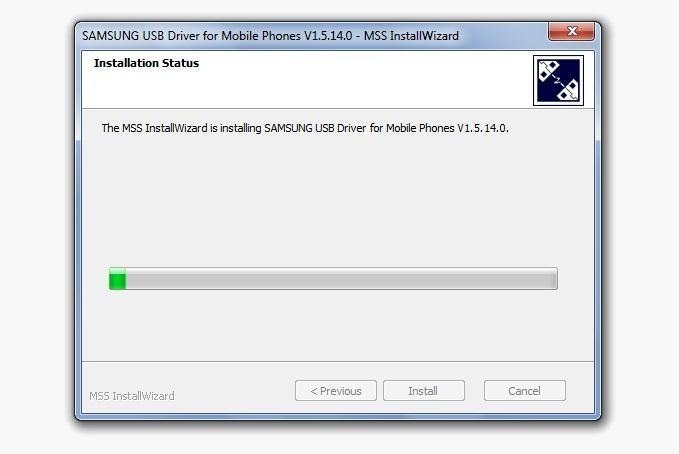
Step 1: Install Samsung USB Drivers:
Start by downloading and installing the USB Drivers onto your Windows computer. You'll need them to properly connect your Galaxy S3 to your computer with Odin. You may be prompted to reboot your computer after they're installed.
Step 2: Extract Odin
Now download and unzip Odin onto your desktop. The
software does not need to be installed, just extracted.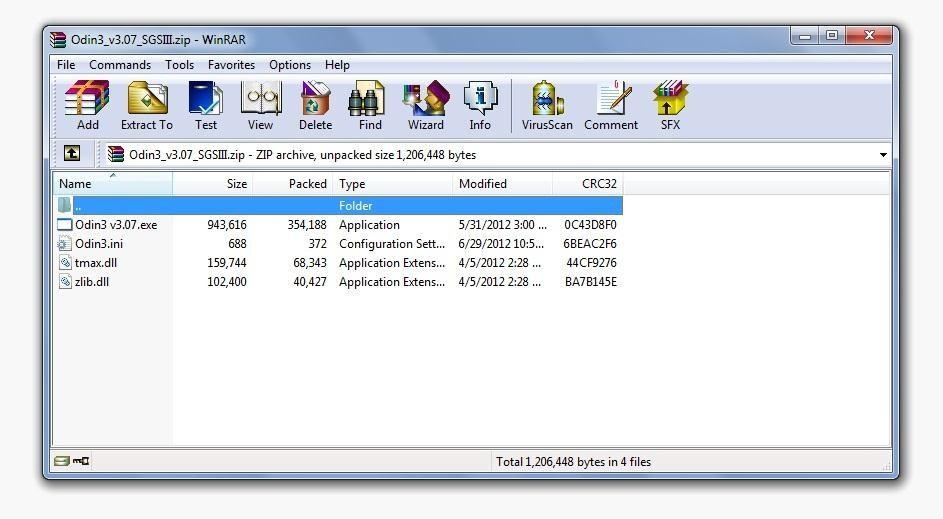
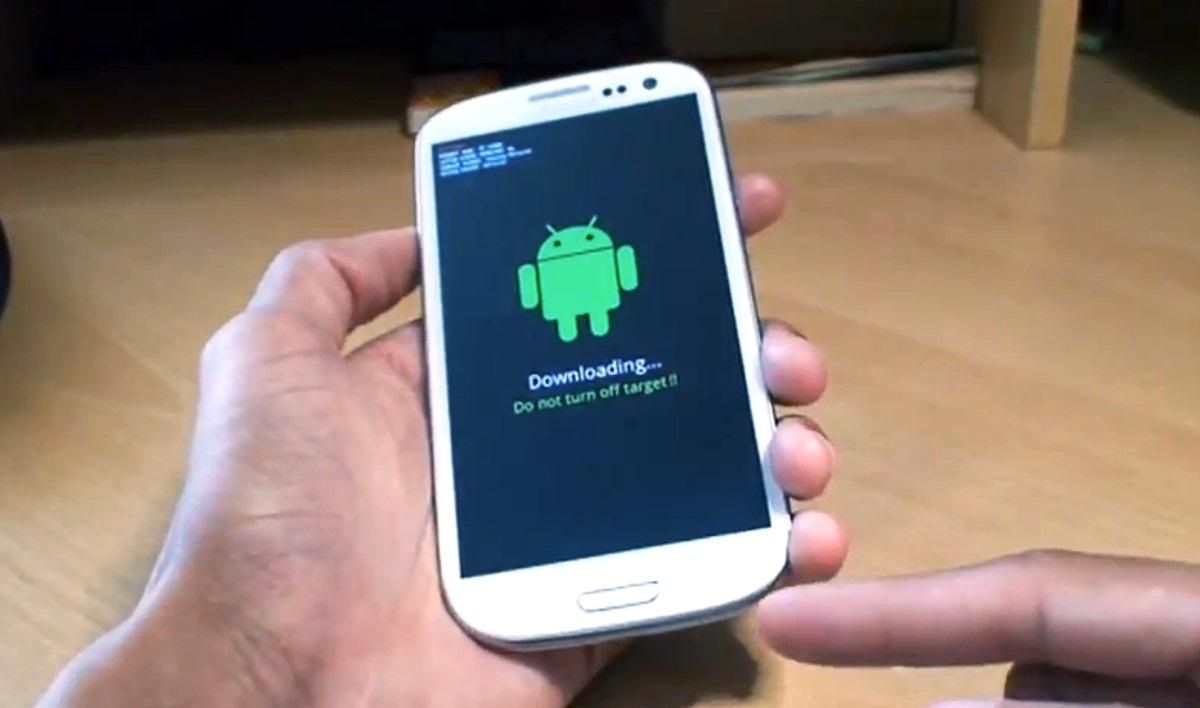
Step 3: Set Phone to Download Mode:
Press and hold down the Home Key, Volume Down Key, and Power Button at the same time until the Samsung screen shows.

Step 4: Using Odin
Connect your Samsung Galaxy S3 to your computer with the included USB cable that came with
your phone. Go into the Odin folder and open the Odin app.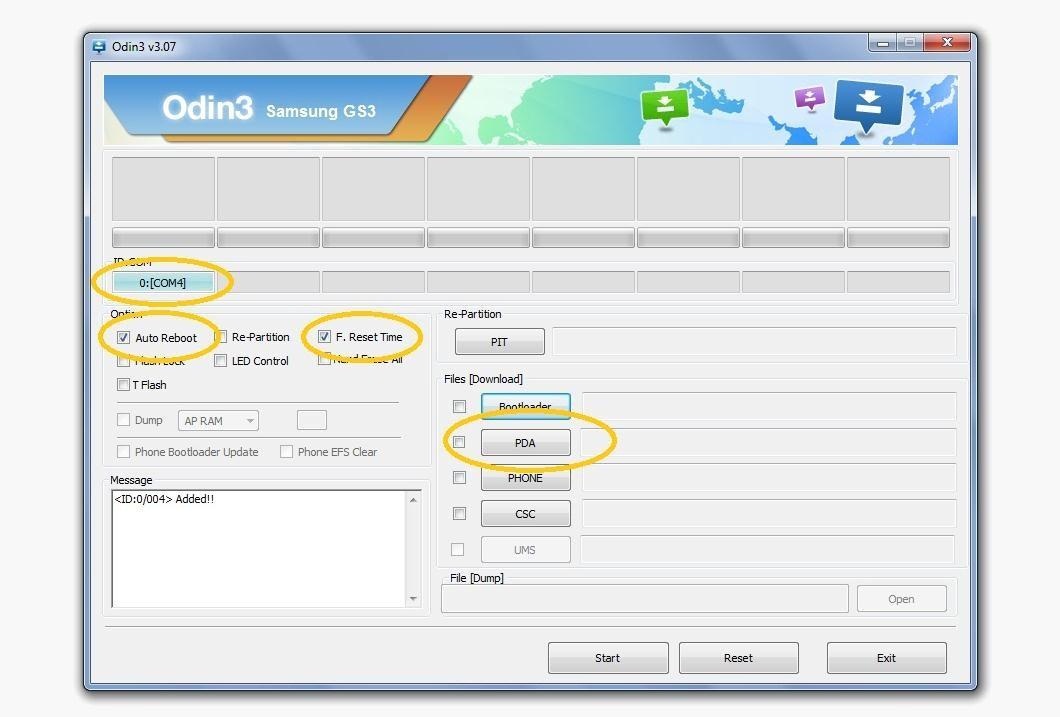
Step 5: Load and Flash File
Extract the Firmware you are flashing (you should have already downloaded it).
- Click "PDA" and go to the folder with your file. Find and click on the file that ends in "tar.md5".
- Click "Start" to begin flashing. Odin will display the current progress during the flashing.
- Your device will automatically reboot once the process is complete.
- Click "PDA" and go to the folder with your file. Find and click on the file that ends in "tar.md5".
- Click "Start" to begin flashing. Odin will display the current progress during the flashing.
- Your device will reboot into stock recovery. From there, reboot.


No comments:
Post a Comment